Mobirise Website Builder

Step 1 - Install Creative Cloud

Download and install Creative Cloud from the official Website: [Download]

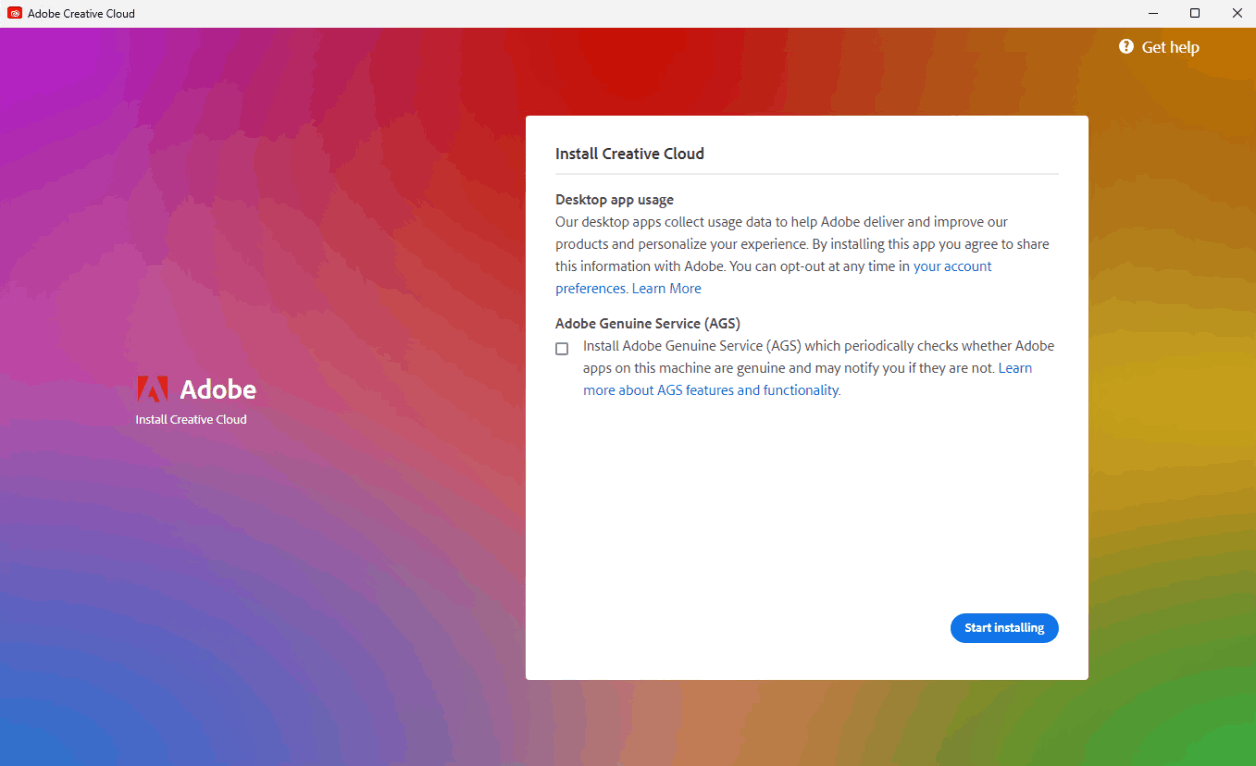
Make sure that the checkbox for Adobe Genuine Service is Turned off. See Image.

During installation you will be promted to Login. You can either log in with an existing Account, or create a new one. I recomment making a new one using a [Temporary Email]
Mobirise Website Builder

Step 2 - Disable Windows Defender

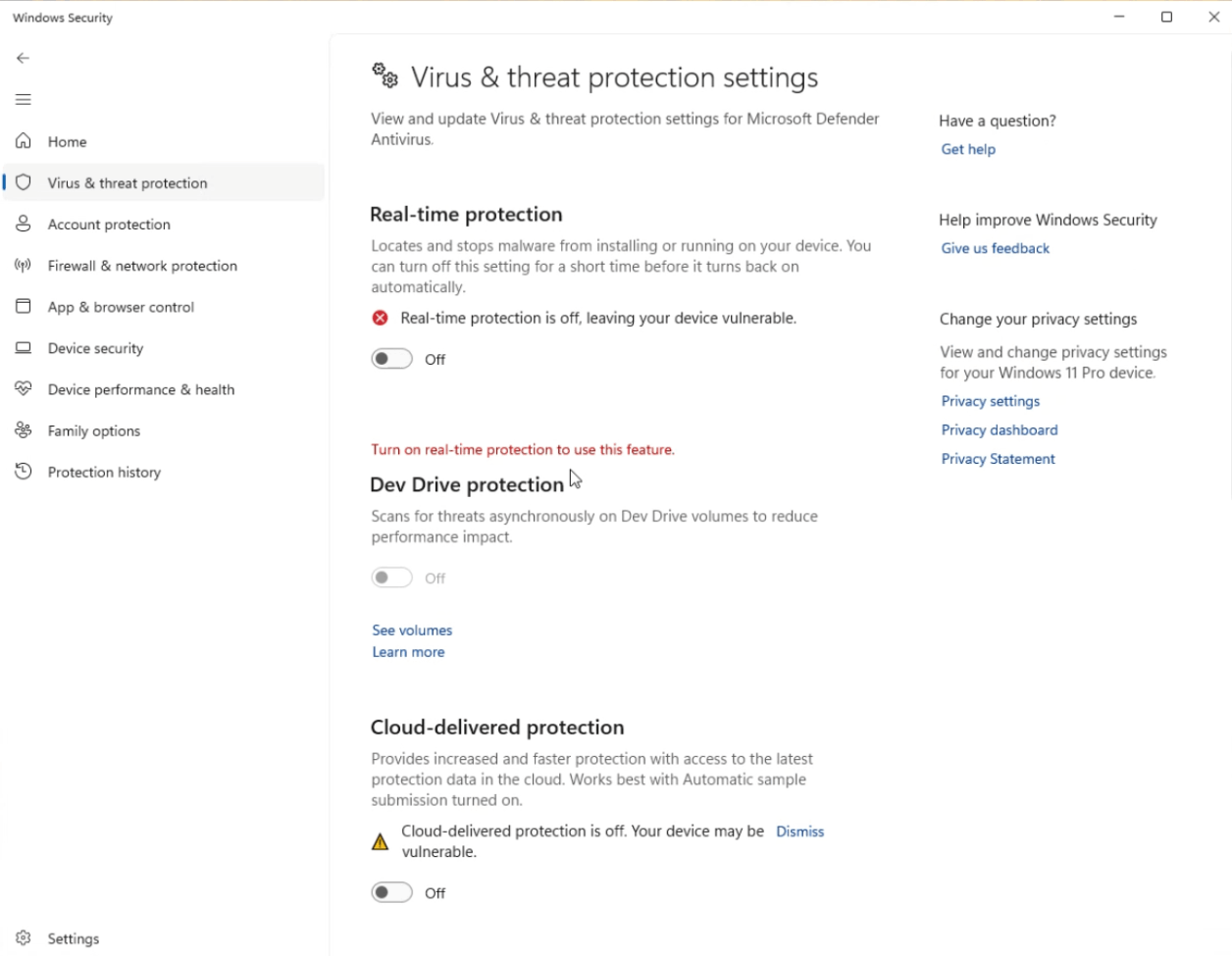
Disable Windows Defender. If you have a different kind of Antivirus, search it up on Google, how to temporarily disable it. 

1. Click the Windows key.

2. Write "Settings".

3. Go to Privacy & security > Windows Security > Virus & Threat Protection.

4. Under Virus & threat protection settings, click "Manage settings".

5. Make sure that the all checkboxes are turned off.

⚠️ Don’t forget to turn it back ON after it’s patched.

Mobirise Website Builder

Step 3 - Download and Run Patch

1. Download and run the Patcher: [Download]

2. If its the first time you run it, you might get a Window telling you it can't run. There, click on "more info" and then "Run anyway"

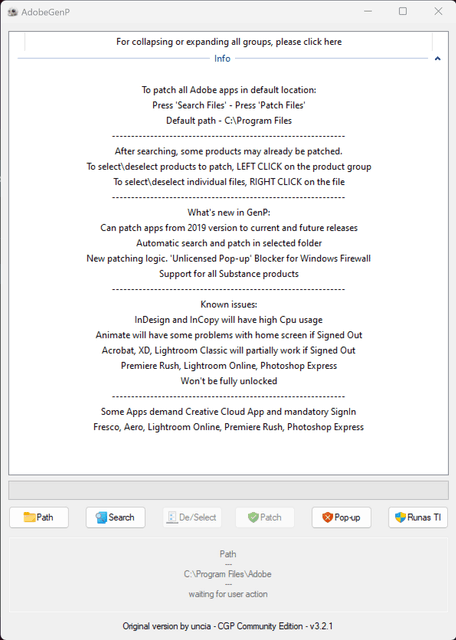
3. Click the "Search" Button in the Patcher and wait for it to be finished

4. Click the "Patch Button in the Patcher and wait for it to be finished

Mobirise Website Builder

Step 4 - Install your desired Programm from Creative Cloud

You can now open Creative Cloud again.
It will now let you install any Programm without prompting you for a credit card.

Wait for your Program to finishe installing. DO NOT OPEN IT YET.

Mobirise Website Builder

Step 5 -Patch you downloaded Installation

Before opening you freshly installed App, you need to run the Patcher again, as described in Step 3.

Mobirise Website Builder

Step 6 - Enjoy!

You did it! You can now open the Programm and enjoy it for Free. Forever.

Download Now and Fight Back!